 DoudouLinux
The computer they prefer!
DoudouLinux
The computer they prefer!
The site's languages [ar] [cs] [de] [en] [es] [fa] [fr] [it] [ms] [nl] [pt] [pt_br] [ro] [ru] [sr] [sr@latin] [th] [uk] [vi] [zh]

Using networking
June 2011 — last update November 2013All the versions of this article: [čeština] [English] [français] [Bahasa Malaysia] [română] [русский]
DoudouLinux can handle both wired and wireless networks. As usual, it will ask as few questions as possible. If you are using a wired network, it will configure the network automatically, without asking anything. If you are trying to connect to a wireless network, it may ask you for a password to access the network and a key manager password to store the network password on the machine [1]. You should then be able to surf the web. That’s all!
Notes:
- Plugging-in a network cable is sufficient to make networking available. No password is required. If you do not want to let children access the Internet as they want, you have to hide network cables!
- The most advanced activities have all the rights to connect to a wireless network using the network tool in the panel. If you do not want children to be able to connect to the Internet without your consent, please set a wireless network access password and do not record this password on the machine in the key manager. Only the most advanced activity “Whole DoudouLinux” can store network passwords due to a known issue [2]. Wireless networks are disconnected as soon as the activity is closed.
- We recall that DoudouLinux is always accessing the Internet through an internal web filtering software, whatever the activity. Children can then be safely allowed on the Internet without much assistance. Please refer to the page Parental controls for more information.
The network manager tool
The network manager tool is displayed in the top right panel, between the help icon and the clock. Its icon indicates the status of the network connection:
- not connected
- wired connection, local
- wired connection, Internet
- Wifi connection
If you click with the left mouse button on the icon, the network manager will display a list of the available networks:
- At the top of the list is the wired network, gray if not plugged-in.
- Next, the list of Wifi access points, if DoudouLinux can use your Wifi equipment.
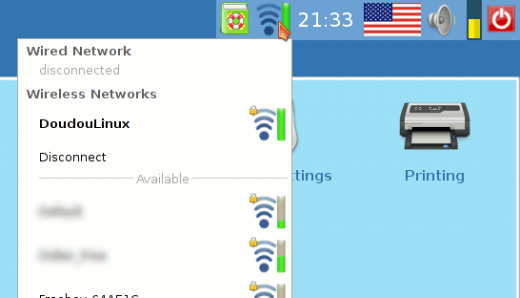
- List of available networks
Once connected to a network – wired or not, you can change the connection point by simply clicking another network in the list. The network manager indicates the connection status in the panel:

- Network not connected

- Network search

- Network being connected

- Network connection active
Wired networks
Just plug-in the network cable and you will see two green lights blinking in the top right panel. When networking is ready, the lights disappear and the panel icon shows the network status. Depending on your network, you will be able or not to reach the Internet:
- If your network is providing full automatic configuration, DoudouLinux will access both your local network and the Internet. This is the case of ADSL boxes and network routers.
- If your network is only providing IP addresses automatically, DoudouLinux will access your local network but not the Internet. This is usually the case of professional local networks, also known as Intranet.
- If your network is fully manually set, DoudouLinux will find a compliant configuration, which does not mean that you will access other devices of the network. All we can say is that several DoudouLinux computers will be able to discuss together, using the instant messaging software Empathy for example.
- If your network is just a wire between two computers, DoudouLinux will also find a compliant configuration. Two DoudouLinux computers are then able to communicate with each other.
Wireless networks
If DoudouLinux is handling your wireless equipment, you should see the list of available wireless networks in your neighborhood as shown above. If you have already recorded your wireless network password, the green lights are displayed in the top right panel as soon as you enter the most advanced activity Whole DoudouLinux. When the Wifi has been connected, the lights are transformed into a small green bar graph indicating the connection signal strength. Depending on the Wifi configuration, you may be asked to enter a password. Note that some public Wifi allow anonymous connections but then require to enter a password on a web portal: you will need to open the DoudouLinux web browser Epiphany to activate the Internet connection.

- Wifi active, showing signal strength
The first time you are connecting to a given Wifi network with authenticated access, the network manager will ask you for the password. Detection of authentication mode is automatic (ie., mostly WEP or WPA [3]).
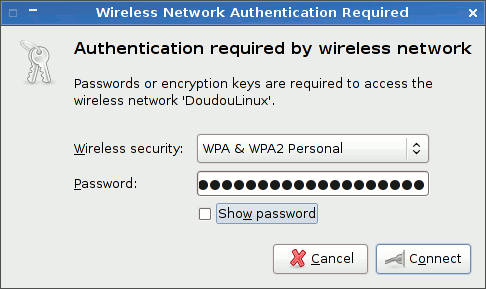
- Entering the WEP/WPA key
The password can be recorded in the key manager for your convenience, otherwise you will need to re-enter it every time. Once the network password has been entered, the key manager password is asked in case you want to record the network password. If you click the button Discard, the WEP/WPA key is not recorded in DoudouLinux. But each time you try to connect to a wireless network, the key manager will ask you what to do.
Important notice: due to a known issue with the key manager, the key manager password cannot be easily changed and is preset to live, as in LiveCD but lowercase. If your language is not using a Latin alphabet, you have to change of keyboard layout by simultaneously pressing both keys left Alt and left Shift.
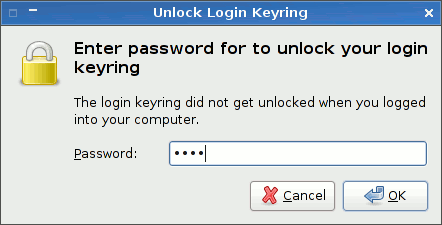
- Entering the key manager password “live”
Supposing that you accepted the password manager to manage your WEP/WPA keys, each time you are trying to connect a previously registered Wifi, everything will happen automatically, without any question. And when you will try to reach a new Wifi, you will just have to enter the new password for this network.
Finally, you can manage your Wifi networks. To do this, click the right mouse button on the network icon in the top right panel, then chose “Edit networks”. An interface will raise and show the list of all the recorded networks:
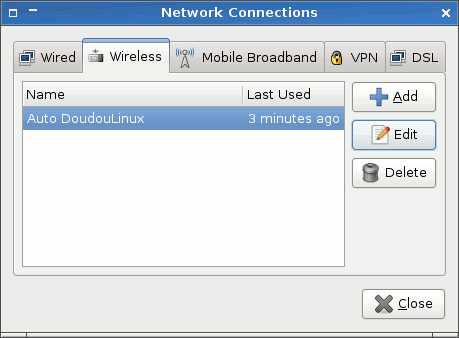
- Editing the registered Wifi connections
Getting your IP address
Computers are talking together over the network using IP addresses. This address is a unique number used to find a given computer on the network. You may need to know the exact IP address of a computer in order to make a client software find the corresponding server software over the network. Usually computers are given a name and you can use this name to reach the computer through the network. However this may fail in case of ad-hoc networks or if several computers have the same name (this is the case if you are running the Live version of DoudouLinux on several computers).
NB: if you just want to use the chat software Empathy, you do not need your IP address since Empathy is able to find other computers without the need of a server software.
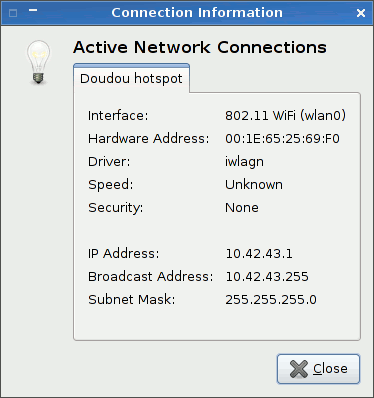
To get the computer IP address, click with the right mouse button on the network icon in the top right panel. In the small menu that is shown, choose the entry “Connection information”. An information window will be shown, displaying several network parameters among which the IP address:
Troubleshooting
I plugged the wire and nothing is happening
Please first check that lights are blinking on your network computer plug. If yes, your wired computer equipment is likely not handled by DoudouLinux. Either the driver is missing for your equipment, or the firmware, the small software that makes the Wifi equipment run. Firmware are not always available depending on the provider policy relative to Linux. This should not happen if your equipment is not so recent (≥ 2 years).
Wifi is not proposed in the list
This means that your Wifi equipment cannot be used by DoudouLinux. This is, sadly, not so rare with very recent hardware. Either the driver is missing for your equipment, or the firmware, the small software that makes the Wifi equipment run. Firmware are not always available depending on the provider policy relative to Linux.
Can I use a low bandwidth RTC modem?
Linux is able to use a low bandwidth RTC modem to connect to the Internet but probably not with the network manager we installed. Unfortunately, we haven’t made any test to use this kind of connection and cannot tell more about this.
He says I’m using a self-assigned address
This is happening when automatic wired network configuration failed. As indicated above, this will not prevent two DoudouLinux computers to communicate together, but you may not be able to reach other devices depending on their own network configurations. You will surely not be able to reach the Internet without manual configuring, which is a very technical operation and is not described in this documentation.
Footnotes
[1] This is useful if you want your children be able to connect to the wireless network by themselves without giving them the network password.
[2] Anyway, only this activity is offering network applications.
[3] Please note that WEP is highly deprecated since it is a very low protection against computer pirates.
Documentation
-
Applications
-
Configuration
- Mouse setting
- Sound settings
- Screen settings
- Keyboard layout
- Date/time and time zone
- The Activities Menu
- Using a USB key or a USB hard disk
- Using a printer
- Language setting
- Using networking
- Creating a WiFi hotspot
-
Questions and issues
-
Advanced tools
- Preserving user privacy
- Parental controls
- Controlling computer use
- Data persistence
- Creating a DoudouLinux USB key
- Installing DoudouLinux definitively












 Copyright © DoudouLinux.org team - All texts from this site are published under the license
Creative Commons BY-SA
Copyright © DoudouLinux.org team - All texts from this site are published under the license
Creative Commons BY-SA

 RSS 2.0