 DoudouLinux
The computer they prefer!
DoudouLinux
The computer they prefer!
The site's languages [ar] [cs] [de] [en] [es] [fa] [fr] [it] [ms] [nl] [pt] [pt_br] [ro] [ru] [sr] [sr@latin] [th] [uk] [vi] [zh]
Creating a DoudouLinux USB key
November 2010 — last update October 2013All the versions of this article: [Deutsch] [English] [français] [italiano] [Bahasa Malaysia] [română] [русский]
As indicated on the page Get DoudouLinux, once you have downloaded the DoudouLinux ISO file, you can turn it into a bootable USB key. However simply copying this file onto an USB key will not give you a working DoudouLinux USB key. You must also install a small program that will allow a computer to boot the USB key at startup. This operation must be achieved once only and does not require to destroy any data on your USB key as long as there is enough space for both the ISO file and the boot program. If you later need to update the ISO file on your USB key, you can just replace the ISO file and change the boot program configuration to make it boot the new ISO file.
1- Creation process
The process of turning an USB key into a bootable DoudouLinux key is described in detail in a post on our blog. As it is quite technical, you can instead use a tool that we specially developed to make the creation of a DoudouLinux USB key as simple as possible. This tool, named “liveusb-write”, is shipped within DoudouLinux so that you do not need to install additional software. All you have to do is to burn a DoudouLinux CD in order to start the system. Since DoudouLinux 2.0, it can even use the running DoudouLinux to make the USB key, you do not need to provide the ISO file anymore.
Notes:
- We are speaking on this page of USB keys only but the target media could be a flash card or a USB hard disk —no difference.
- Unlike the version of “liveusb-write” that was shipped within DoudouLinux 1.0 to 1.2 (Gondwana), the version shipped within DoudouLinux version 2 will not reformat your USB key. No data will be lost and you will be able to keep using your USB key as a standard storage device, of course with less free space.
- You can also use “liveusb-write” on any Linux computer [1] by downloading the Debian package and its dependencies [2] or by downloading the Python script directly from our source code repository. On the other hand, it is not currently designed to run on Windows® or Macintosh®.
2- Creating the key using liveusb-write
To use the tool shipped within DoudouLinux, you have to start it from The Whole DoudouLinux activity, in the application section Settings → System. If you are using another Linux system and installed the Debian package, you can find the executable in the Administration menu. Finally, if you downloaded the Python script, you have to run it from a console. This tool operates in two modes:
- the wizard mode, with a minimum number of questions
- the expert mode, which allows the user to choose everything that can be chosen
Operating in wizard mode, the tool automatically detects the USB keys and proposes to create a DoudouLinux key using one of the USB keys found. Because the size of most USB keys is larger than the size needed to write those 1 GB of DoudouLinux, the tool will also create for you a file that will make possible the activation of data persistence for users. If you wish to activate user data persistence as well as system data persistence, you have to use the expert mode or to manually rename the file home-rw-doudoulinux created at the USB key root into live-rw-doudoulinux.
2.1- Wizard mode
The wizard mode progress is the following (see the pictures below):
- The user chooses the ISO file that is to be written onto the USB key.
- The running DoudouLinux CD or USB key can be used as well [3].
- If DoudouLinux is running from a CD, the first ISO file found in the user home directory is proposed. If no ISO file is found, the running CD media is proposed.
- If DoudouLinux is running from an USB key, the first DoudouLinux ISO file found on it is proposed. Likely it should be the ISO file of the running DoudouLinux, unless you have several ISO files on your USB key.
- The user chooses the target USB device:
- If only one USB key is detected, it is proposed as the destination.
- If several USB keys are detected, a list is displayed to let the user choose.
- If no USB key is detected, a message is displayed inviting the user to connect an USB storage device and restart the tool.
- A confirmation window summarizes all the operations that are about to be achieved.
- Data are written. The process is typically lasting 5 to 10 minutes, a series of progress windows will be displayed to inform the user about the progress.
Once the operations are finished, a new window indicates that the job is completed. The USB device is immediately available, you just have to unmount it (see Using a USB key or a USB hard disk).
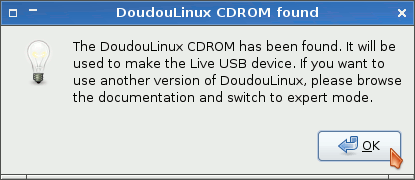
- The running DoudouLinux CD can be used
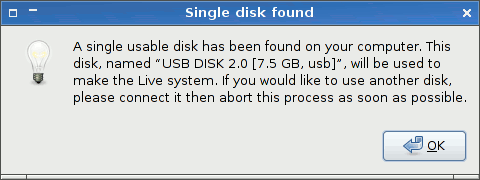
- A single USB disk has been detected
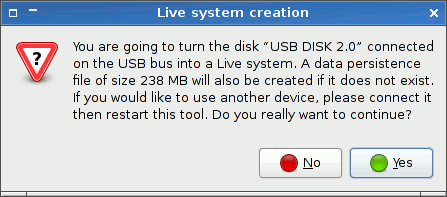
- Confirmation dialog before creating the Live USB media
2.2- Expert mode
To run the tool in expert mode, you have to use the console and type the following command:
sudo liveusb-write --expert
The operation also begins by choosing the ISO file that is to be written. The full list of storage devices is presented, showing external devices as well as internal hard disks.
Warning: if you choose an internal disk and do not know how to configure the boot program, you will not be able to boot the system previously installed into your computer anymore. Do this only if you perfectly know what you are doing.
The next step is to choose the kind of data persistence you wish to use (user data with or without system data) and the size of the persistence file. The size must be specified in megabytes but without unit. Finally, the installation operation will start after you agree in a confirmation window.
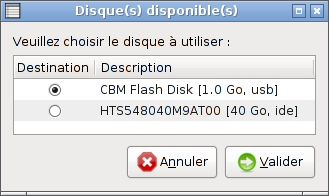
- Sélection du disque dans le mode expert
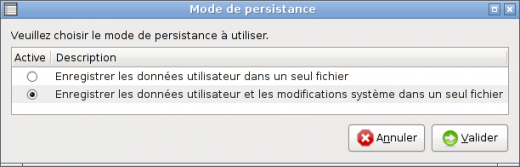
- Sélection du type de persistance dans le mode expert
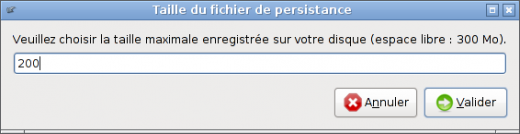
- Sélection de la taille de persistance dans le mode expert
3- Updating the USB key
The DoudouLinux USB key can now be easily updated without any specific tool. The two necessary operations are the following:
- Replace the ISO file on the USB key. It is located in the directory
boot/at the USB key root. - Update the boot program configuration by changing the name of the ISO file in it. We provide a script liveusb-update-grub that does it for you. It is also located in the directory
boot/at the USB key root. You can alternatively manually edit the fileboot/grub/grub.cfgafter having done a backup of this file preferably!
Of course, if you find the update process too technical, you can decide to just rerun liveusb-write after having removed the ISO file on the USB key to make room. Indeed liveusb-write is using our update script to configure the boot program. Note that liveusb-write does not overwrite the persistence file on the USB key. If you need to regenerate it, you have to remove it manually. The persistence file is placed at the USB key root, its name is home-rw-doudoulinux or live-rw-doudoulinux.
If you prefer use our update script manually, it currently only runs from within a Linux console. You have to provide the absolute path of the USB device, here /media/usbdisk/:
sudo sh /media/usbdisk/boot/liveusb-update-grub /media/usbdisk/
When it is launched, the script makes a backup copy of the boot program configuration file. If you prefer edit the configuration file boot/grub/grub.cfg manually, you need to change the ISO file name in each occurrence of the following line in the file:
set isofile=doudoulinux-hyperborea-2.0-fr.iso
This line occurs at least two times in the end the file. Note that depending on the DoudouLinux version you previously copied onto your USB key, the file name may not be strictly identical to the example above.
4- Changing system parameters
Several system parameters are accessible in the boot program configuration file boot/grub/grub.cfg on the USB key. The most interesting parameters are probably the following:
- System language. You can choose between several alternatives of the main CD language (if there are any), plus American English for non English CD’s. For example on the English CD, you can choose between Australian English, British English, Canadian English, etc.
- Keyboard layout. You can change the keyboard layout, model and variant to match your actual keyboard. DoudouLinux is configured to use a default keyboard that is matching the country of the CD default language. If it does not match yours, you probably need to change of layout.
- Timezone. Similarly to keyboard layout, DoudouLinux is configured to use a default timezone that is matching the country of the CD default language. If it does not match yours, you probably need to change of timezone. You may also need to change the UTC option of the hardware clock.
These parameters are now quite easy to change because they are located in a text file on your USB key which is still functioning as a standard storage device. However the difficulty is lying in the need of retrieving the configuration values that are not always trivial. In the future we will provide a graphical tool to achieve these tunings but currently you have to do that manually.
To set these parameters, the line to edit in boot/grub/grub.cfg is looking like this long one (bold added for the parameters of interest):
linux (loop)/live/vmlinuz findiso=boot/$isofile boot=live config locales=fr_FR.UTF-8 keyboard-layouts=fr,us,de keyboard-variant=oss,, keyboard-options=grp:alt_shift_toggle,lv3:ralt_switch,compose:menu,terminate:ctrl_alt_bksp utc=no timezone=Europe/Paris nox11autologin splash nomodeset video=uvesafb:mode_option=640x480-16,mtrr=3,scroll=ywrap live-media=removable username=tux hostname=doudoulinux quiet
Yes, this is quite a long line! In this line, a parameter name is immediately followed by an equality sign then the parameter value without any space character. So now let’s look at each parameter in detail.
NB: these parameters can be changed in a DoudouLinux CD too but this requires to disassemble then reassemble the CD ISO file before burning it, as explained in the post DoudouLinux ISO relocalization on our blog. This is a very technical operation that requires dedicated tools to be installed. These tools are standard Linux tools though.
4.1- Changing of system language
The parameter to change is locales [4]. The convention is to provide a comma separated list of languages, the first one being the default one. There is no obligation to provide a list: if you want to use a single language only, just specify this language without any comma. Languages are of the form en_US.UTF-8 where en is the language and US is the country. Read the page Language setting to know how to list the available languages. You can find the current language of the system by typing the following command in the console:
echo $LANG
If you have changed the system language as indicated on the page Language setting, you need to close the current DoudouLinux activity first then reenter it for the LANG value to be up to date. Alternatively, you can run the language setting tool from the command line to get the code of the language you are selecting in the tool. Every time you click on a language of the list, its code is displayed in the console (text output is indented):
lang-config
  Selected language: en_US
  Selected language: en_GB
4.2- Changing of keyboard layout
The parameters to change are keyboard-layouts and keyboard-variant. The convention is to provide a comma separated list of layouts and one of variants, you can then provide several layouts and their variants, the first one being the default one. If there is no variant name for a given layout, the comma must be specified but with an empty string (for example legacy,, for three variants, the last two being empty). There is no obligation to provide a list: if you want to use a single keyboard layout only, just specify this layout and its variant without any comma. When several layouts are specified, to switch of layout, you can use either the flag icon on the top the screen in advanced activities, or simultaneously press the left Shift key and the left Alt key in any activity.
The easiest way to find the value for the layout(s) and the variant(s) is to run the keyboard setting tool from the command line. Read the page Keyboard layout to know more about this tool. Every time you click on a layout or variant in the lists, their code is displayed in the console (text output is indented):
keyboard-config
  ,us,de ,,
  Selected layout(s): fr,us,de
  Selected variant(s): oss,,
4.3- Changing of timezone
The parameter to change is timezone. If you need to change the UTC option too, the parameter is simply utc. The timezone is of the form Europe/Paris. You can retrieve your timezone code by running the timezone tool from the command line. Every time you click on a timezone of the list or on the world map, the timezone code is displayed in the console (text output is indented):
timezone-config
  Selected timezone: America/Montreal
Read the page Date, time and timezone to know more about the timezone tool and the role of the UTC option. The value of this option must be either yes or no depending on whether the hardware clock is using the UTC time or not (“no” means it is using the local time).
Footnotes
[1] We have never tested, but the script does not call any software specific to a given Linux distribution. However you need to install the tools that the script requires: zenity, parted, squashfs-tools, time, grub2.
[2] It should work on all Linux systems derived from Debian, e.g. Ubuntu.
[3] The tool “liveusb-write” can now generate an ISO file from the running DoudouLinux CD or copy the ISO file of the USB key when DoudouLinux is running from an USB device.
[4] Locales are more than just the language used, they also specify the way to write date and time, the decimal separator for numbers, etc.
Documentation
-
Applications
-
Configuration
- Mouse setting
- Sound settings
- Screen settings
- Keyboard layout
- Date/time and time zone
- The Activities Menu
- Using a USB key or a USB hard disk
- Using a printer
- Language setting
- Using networking
- Creating a WiFi hotspot
-
Questions and issues
-
Advanced tools
- Preserving user privacy
- Parental controls
- Controlling computer use
- Data persistence
- Creating a DoudouLinux USB key
- Installing DoudouLinux definitively












 Copyright © DoudouLinux.org team - All texts from this site are published under the license
Creative Commons BY-SA
Copyright © DoudouLinux.org team - All texts from this site are published under the license
Creative Commons BY-SA

 RSS 2.0